
People photo created by stockking – www.freepik.com
Have you ever installed Smadav antivirus? The app has such a big green triangular icon. Imagine that icon sliding its way to the top of your phone’s screen? It can be bothersome and that may not be the main problem. The main issue is when you cannot remove it and the only choice you are left with is to uninstall the app.
I almost did that with Eset. It is such a good app but i don’t know what they did with their latest version. It has this E that is so hard to hide from the screen’s top bar.
The good thing though is that most notifications can be removed. You don’t have to uninstall all apps that show notifications. Its all in the settings. The only problem is that in some apps you will have to do some digging. The switch is probably hidden somewhere you can hardly think of.
I don’t know whether its for marketing purposes but most app developers will make it hard for you to locate these settings. They want to send you notifications but at the same time don’t want to put you in a position where you can’t block them.
So today i will take you through a few ways by which you can get rid of annoying notifications and icons on top of your phone’s screen.
Hide them
Apart from the app’s interface, the only place notifications will appear is on top of your phone’s screen. You can temporarily hide them but they will still come back. What you need to do is long press that notification. It will show a settings or learn more icon. Click it and it will direct you to the apps’ notification settings. There you can choose to hide all notifications.
Unsubscribe

Instead of struggling with notifications while they are already in your phone why not stop them right from their source? They can be push notification from a blog, a youtube channel or one of the installed apps like facebook. You may not have noticed it but the reason you are getting this notification is because you clicked a bell somewhere. In some apps all you need is to undo it while in others i.e blogs, you will need to block their notification via the browser. The settings may vary from browser to browser but expect to find them in the site settings.
In app settings
Though this ones will not always do the trick, most if not all apps have notification settings. All you need is to go direct to the app’s settings and block. them. I don’t know whether its for marketing purposes but most app developers will make it hard for you to locate these settings. They want to send you notifications but at the same time don’t want to put you in a position where you can’t block them.
The phone’s settings
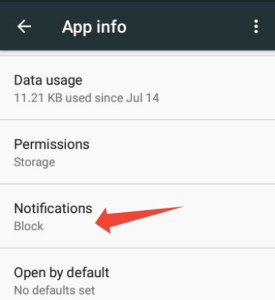
If you cant block them through the app’s settings, go straight to the phone settings then select apps. Choose the specific app whose notification you would like to block. In the apps info, among storage, permissions and the rest, you will find notifications. Click and select block all to stop all notifications from that app.
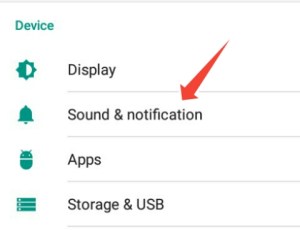
Another way you can access the Block all notification settings is through the Device section of the main phone settings. It will display all the installed apps.Then you can select the one whose notifications you wish to moderate.
 Automatelyfe
Leave a comment